Welcome to the Voltquant AI Colleague documentation site
Quick Start
Sign-In/Sign-Out
Once your Organisation has been set-up with Voltquant, you can Sign-in to your account using your Microsoft credentials. We use Microsoft as an authenticator for your security and convenience.
Initial Sign-In Using Microsoft Authenticator
1. Find Us
Using your browser of choice, navigate to our Web App at:
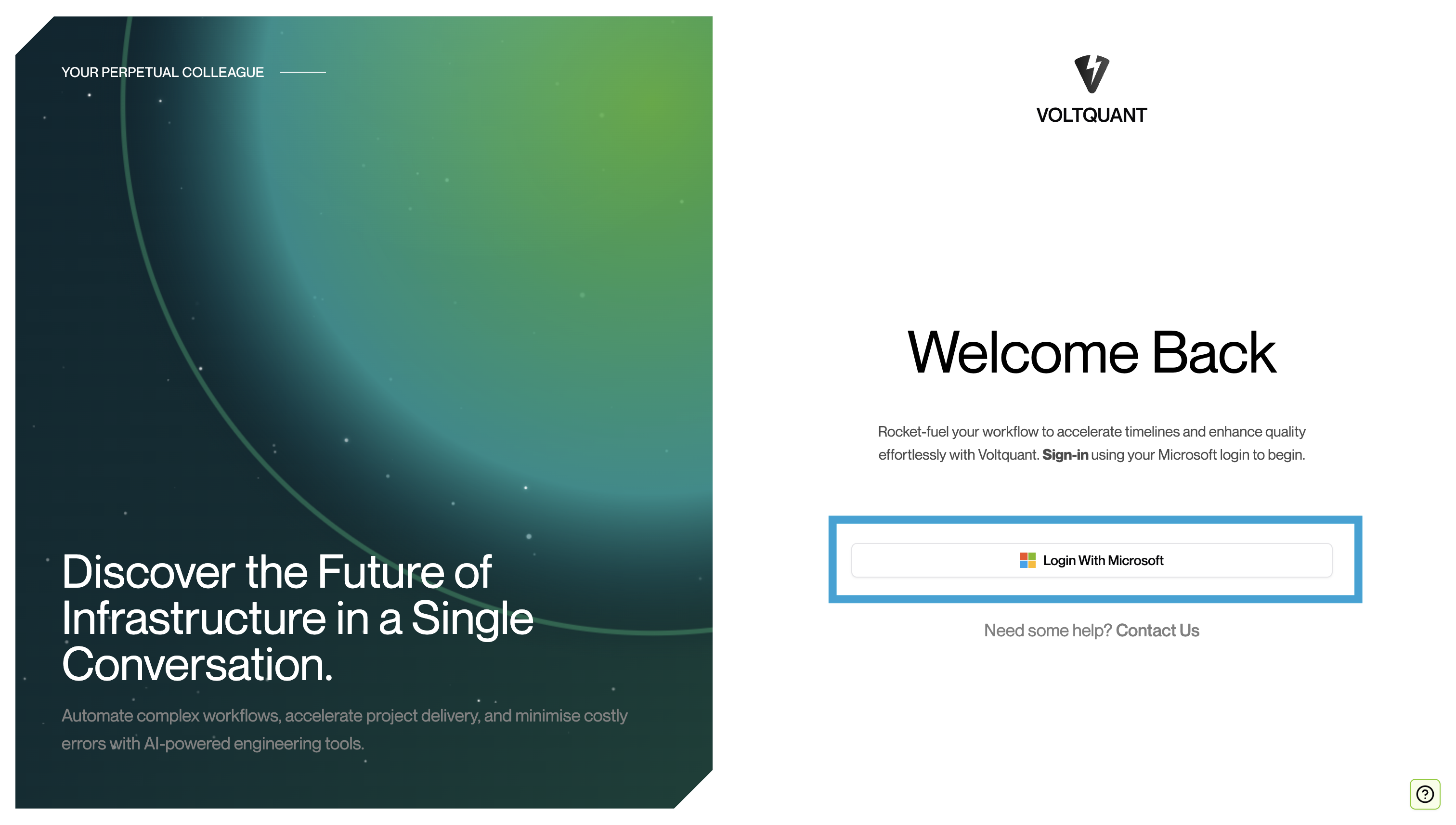
2. Select ‘Login With Microsoft'
Select the Login button as displayed below:

3. Enter Microsoft Credentials
You will be redirected to the Microsoft login screen in a new tab where you can enter your details. On success, you will be redirected back to Voltquant app.
4. Enjoy the app!
On success, you will be able to view your Organisation’s 'Project Page':
Initial Sign-In Using Microsoft Authenticator
1. Find Us
Using your browser of choice, navigate to our Web App at:
2. Select ‘Login With Microsoft'
Select the Login button as displayed below:
3. Enter Microsoft Credentials
You will be redirected to the Microsoft login screen in a new tab where you can enter your details. On success, you will be redirected back to Voltquant app.
4. Enjoy the app!
On success, you will be able to view your Organisation’s 'Project Page':
Initial Sign-In Using Microsoft Authenticator
1. Find Us
Using your browser of choice, navigate to our Web App at:
2. Select ‘Login With Microsoft'
Select the Login button as displayed below:
3. Enter Microsoft Credentials
You will be redirected to the Microsoft login screen in a new tab where you can enter your details. On success, you will be redirected back to Voltquant app.
4. Enjoy the app!
On success, you will be able to view your Organisation’s 'Project Page':
Regular Sign-In
1. Find Us
Using your browser of choice, navigate to our Web App at:
2. Select ‘Login With Microsoft'
Select the Login button as displayed below:
3. Enter Microsoft Credentials
You will be redirected to the Microsoft login screen in a new tab where you can enter your details. On success, you will be redirected back to Voltquant app.
4. Enjoy the app!
On success, you will be able to view your Organisation’s 'Project Page':
Sign-Out
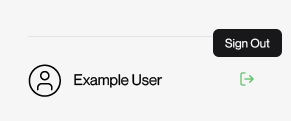
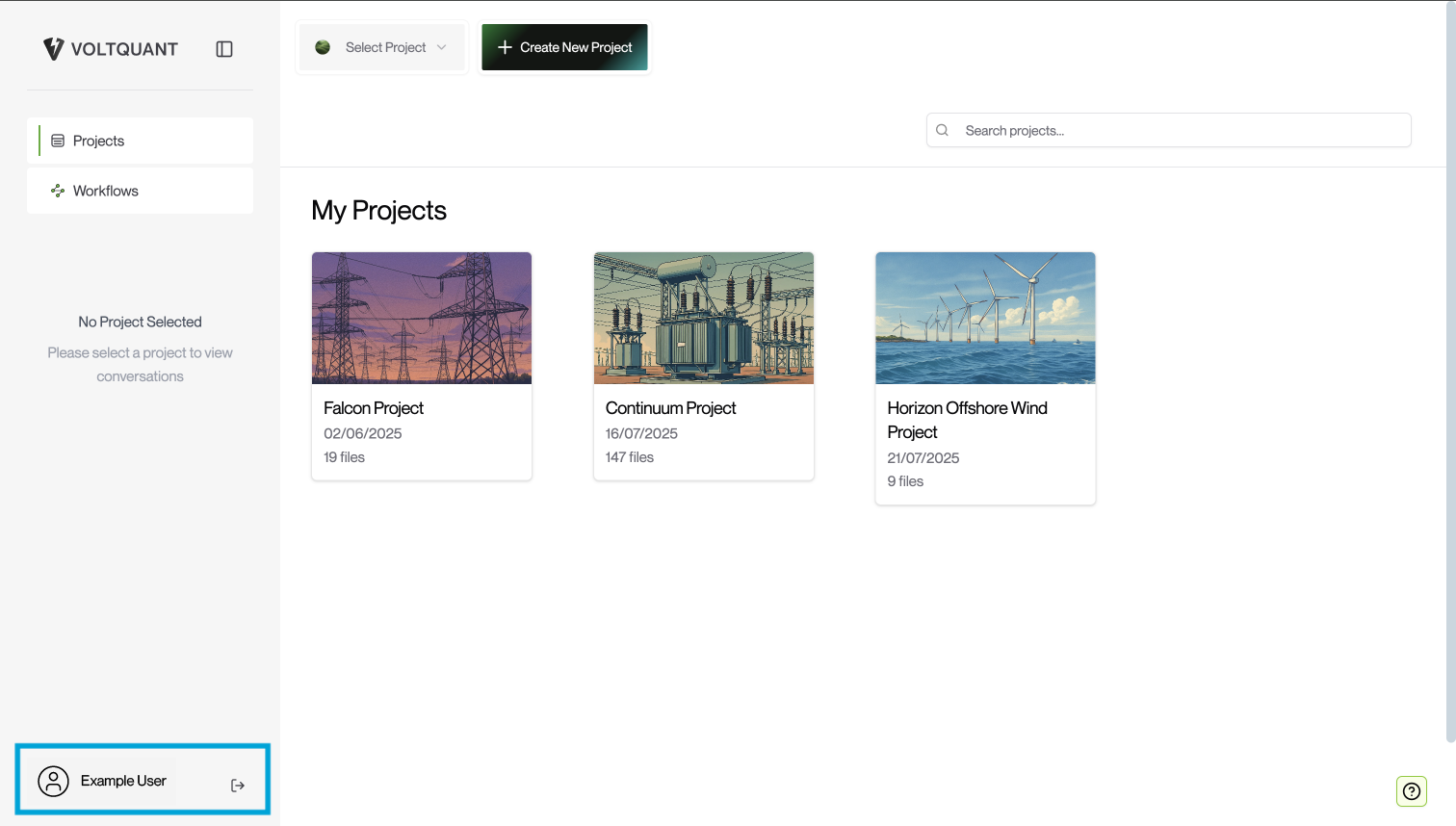
1. Select Sign-Out Icon
Navigate to the bottom of the sidebar to find the sign-out icon, as seen below:
2. Confirm Success
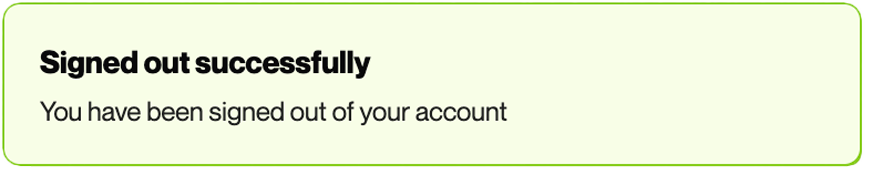
When successfully logged out, you will see a confirmation toast confirmation toast in bottom right-hand corner.
FAQs
How does Voltquant answer my questions?
Voltquant draws on multiple knowledge sources to provide comprehensive, informed responses:
- Your organisation's knowledge base - Including project documentation, internal databases, and institutional expertise.
- Industry-specific insights - Leveraging deep understanding of energy markets, quantitative analysis, and sector best practices.
- Contextual analysis - Combining your specific organisational context with broader industry trends and technical knowledge.
This multi-layered approach ensures responses are both technically accurate and tailored to your specific needs and operational environment.
What is the difference between a Reader, Admin and Super Admin?
A Reader can access:
- Chat Feature
- Workflows Feature
An Admin can access all of the above, plus:
- View Project Controls
- Add and Remove Users in User Management
- Add and Delete Files in File Management
A Super Admin can access all of the above, plus:
- Create Projects
- Delete Projects
How do I view the sources used to generate an answer?
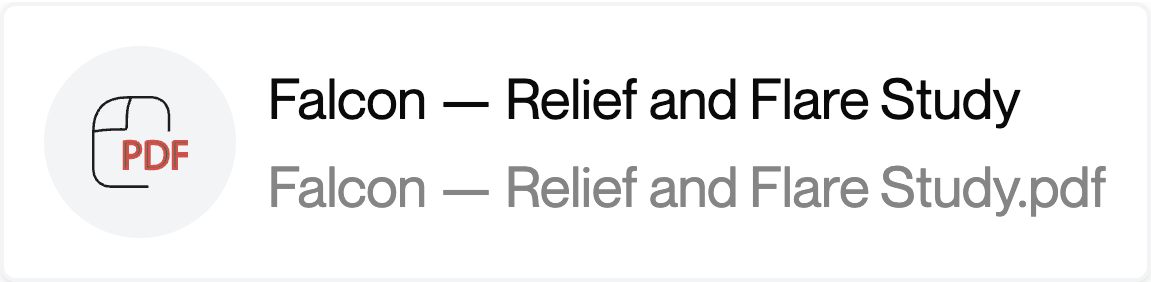
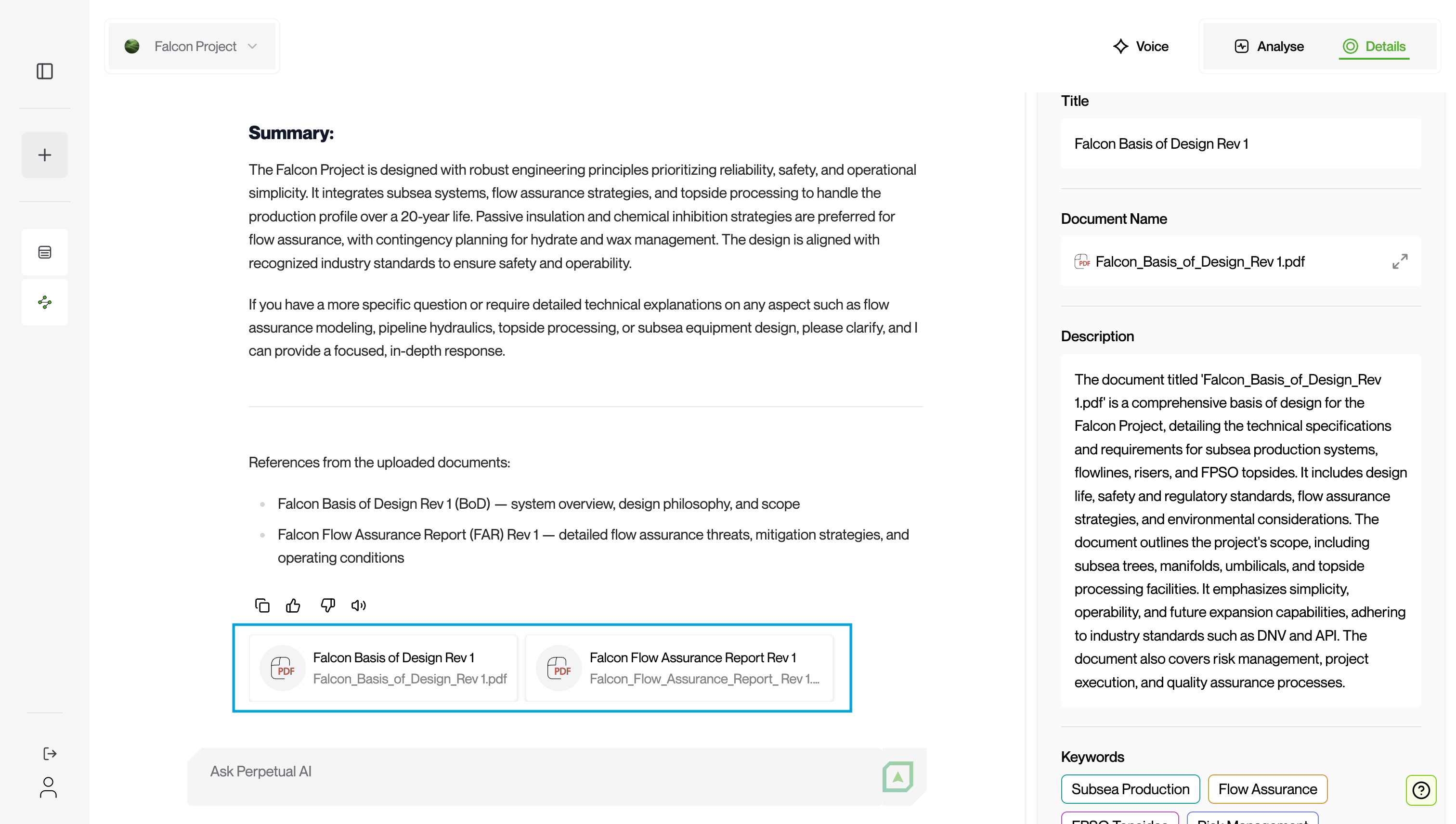
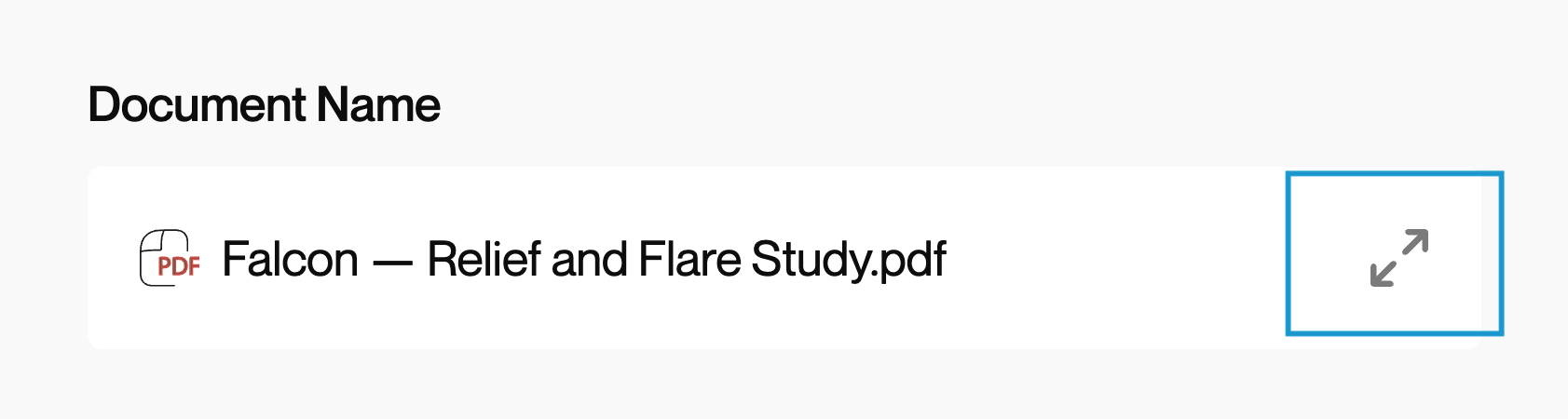
At the bottom of each answer, there are File Tiles specifying which documents have informed the above answer. If you would like to see which specific section was referenced, please select the File Tile and select the Expand icon next to Document Name.
How do I start a new thread?
Select New Conversation in the sidebar or use the hotkey Cmd+K (macOS) / Ctrl+K (Windows/Linux).